



Last week, I wrote about the benefits of using Styles in your word processing program to make your writing more consistent, efficient and professional. This week, I explain some of the resulting efficiencies that come from understanding how to use Styles.
I am using Microsoft Word as the example, but the same concepts apply to most word processing applications.
Table of contents
Once you have set up styles for your chapter and section headings, you can use them to generate a table of contents. In Word, choose the REFERENCES ribbon, click on the arrow beside Table of Contents (first button from the left) and select Custom Table of Contents. In there, you can build your ToC from the styles you created.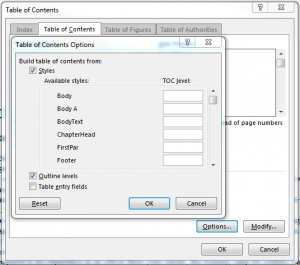
Another way to do it is to customize the pre-made heading styles built into the program, and then you can select the automatic ToC. Either way, you can choose to have multiple levels of headings and subheadings in your ToC. For fiction, you probably only need chapters, although if you have Parts, as well, you’ll need to add them and their styles to your Styles menu. In the main window, select 1 Level.
For non-fiction, where you have several levels of sub-headings, choose the number of levels you want to appear in the ToC. Usually two is enough.
Also choose the “tab leader”—whether you want dots, dashes or nothing at all between the heading and the page number in the table.
When you have selected what you want to appear in the table of contents, click OK. The program then creates the Table of Contents, with the page numbers correctly listed.
If you change something, like add a new chapter in the middle or extend one of the them so that the new content pushes the following content onto further pages, all you have to do is click on Update Table in the ribbon, and the program corrects the page numbers.
Cascading effects
There are even more benefits to this. When you want to publish your book through Amazon or any other e-book service, the programs recognize styles. They may transform the typeface selections from, say, Times to Times New Roman, or Futura to Avenir, but at least the selections will be consistent.
This also works for blogging platforms like WordPress and Blogger. If you use Styles, such as Normal and Heading 2, WordPress recognizes this and replicates it in your blog post. Again, WordPress will change the type font, but will preserve the fact that it’s a Heading 2, and assign it size, weight and position according to its own system.
Use Styles throughout
Now that you’ve seen how Styles make your writing and publishing faster and more professional, use them throughout your work. I set up a Body Text and a First Paragraph styles, and modify the style for headers and footers to my preference.
The same idea applies to pages and sections. In a future post, I’ll explain how to start new chapters with their own styles for the first page. In the meantime, try out these techniques.
If you have any questions, put them in the Comments.
Happy writing!
Permalink
This is so helpful. I always struggle with the table of contents, especially with the create space template. Thank you! Thank you!
Permalink
Good advice here!